DOCUMENTATION
Description of the main functions of the system: 29.04.2025
protimer.club/dashboard
1
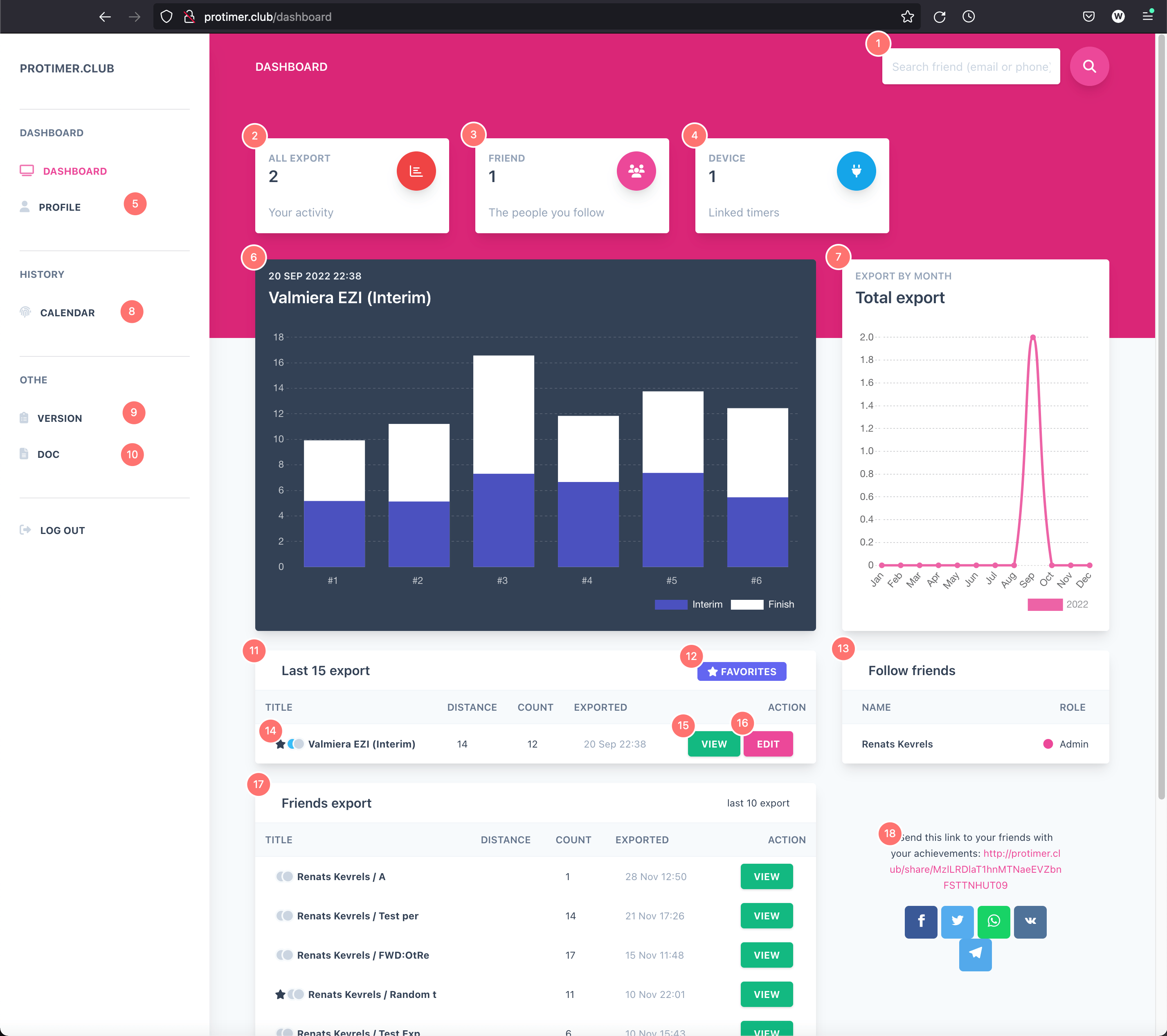
Search for users of ProTimer.club devices by phone number or email, after a successful search you will be able to enter their profile and follow your friend's results (Export).
2
The total export volume, the quantity is not limited.
3
Friends you follow.
4
The main devices associated with the profile (Master Point).
5
Profile management (my data).
6
The last or selected export chart.
7
Monthly export volume.
8
History with calendar for more convenient export search.
9
List of changes in Master Point versions. The software can be updated by pressing the button on the device and connecting it without releasing it. Master Point will connect to the router (Wi-Fi router) and download the latest version.
10
This documentation page.
11
List of the last 15 experts.
12
Show exports that have been added to favorites, adding occurs on the export editing page.
13
List of friends you follow.
14
The name of the export.
15
Displaying export data in a chart.
16
Edit the selected export.
17
List of recent expert friends.
18
Share your achievements by sending this link.
Edit export
1
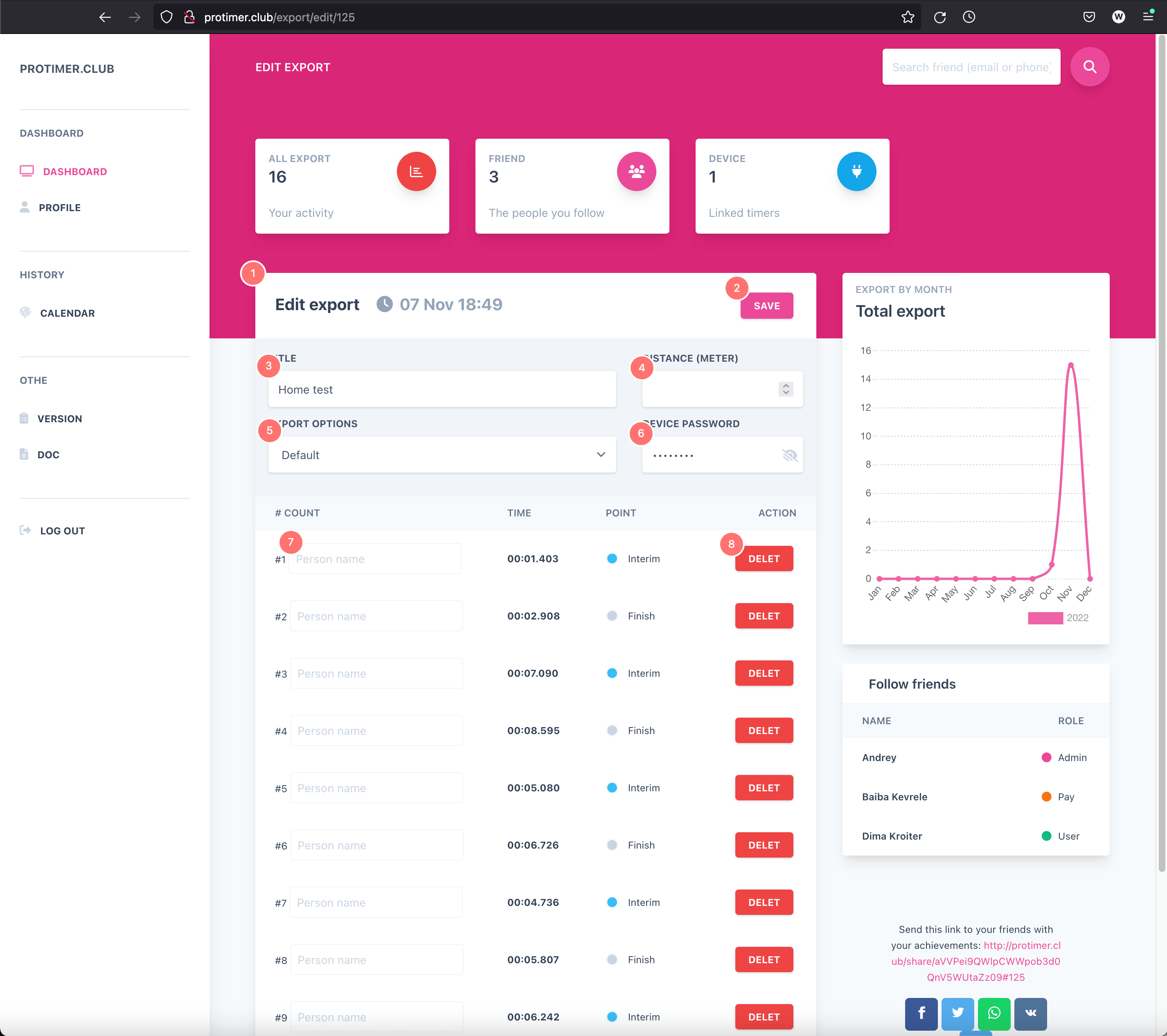
Export edit page
2
Button to save changes.
3
The name of the export.
4
The distance in meters needed to determine the speed. Speed information will be available on the chart.
5
Additional export settings:
Adding to favorites, in this case, there will be an asterisk before the export name.
Ability to hide export from subscribers.
6
The device password used for export can be useful if you want to send data to another profile. (To do this, you need to know the other participant’s device password.) Be careful: if you enter the wrong password, the data will be lost.
7
An identifier (name, number, etc.) can be assigned each time in an export, useful if there are several riders in one export.
8
Delete time.
Calendar
1
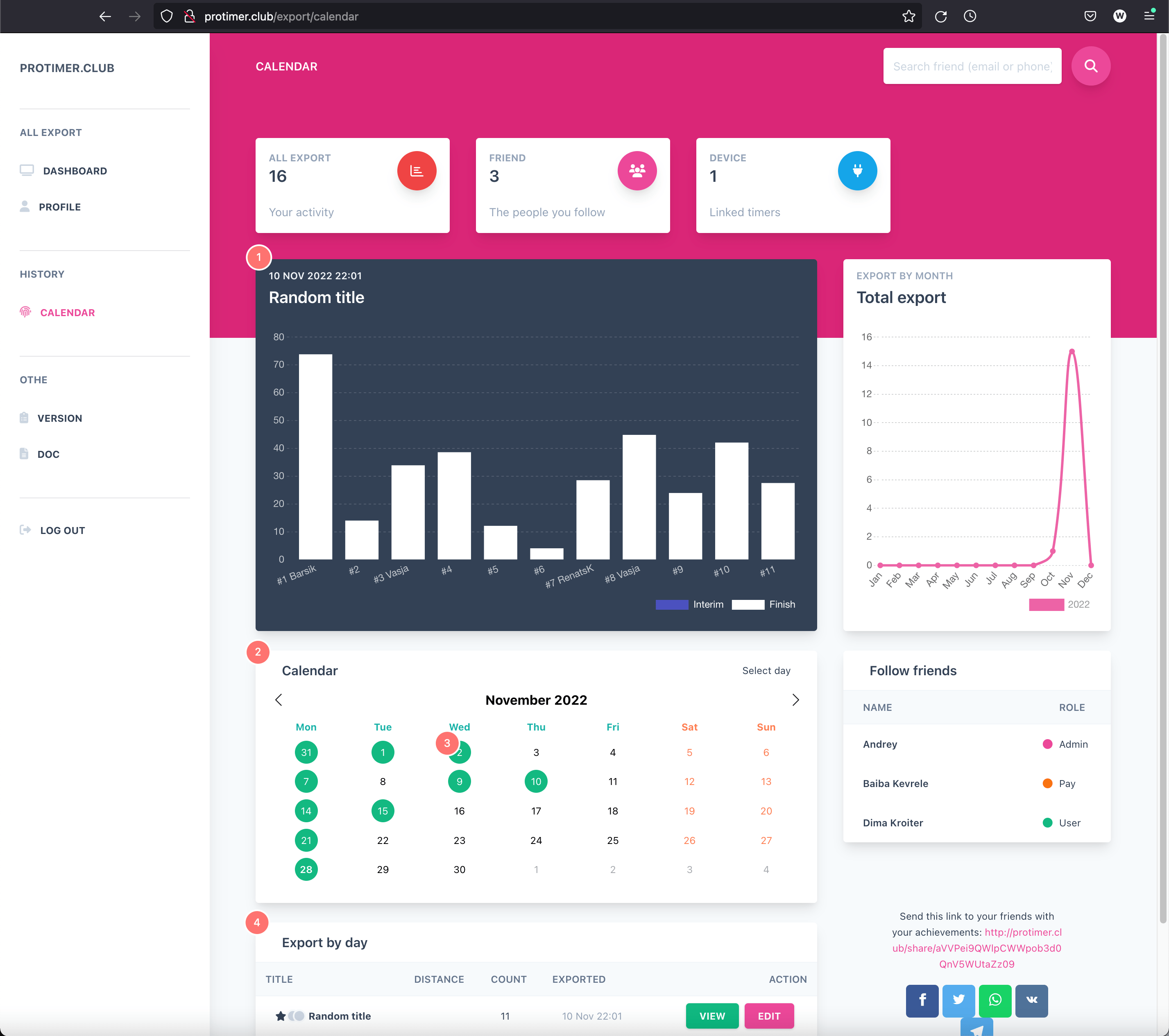
The last or selected export chart.
2
A calendar in which you can select the desired year, month or day.
3
Marked dates mean that the download (Export) took place on that day.
4
List of exports for the selected day in the calendar.
Share
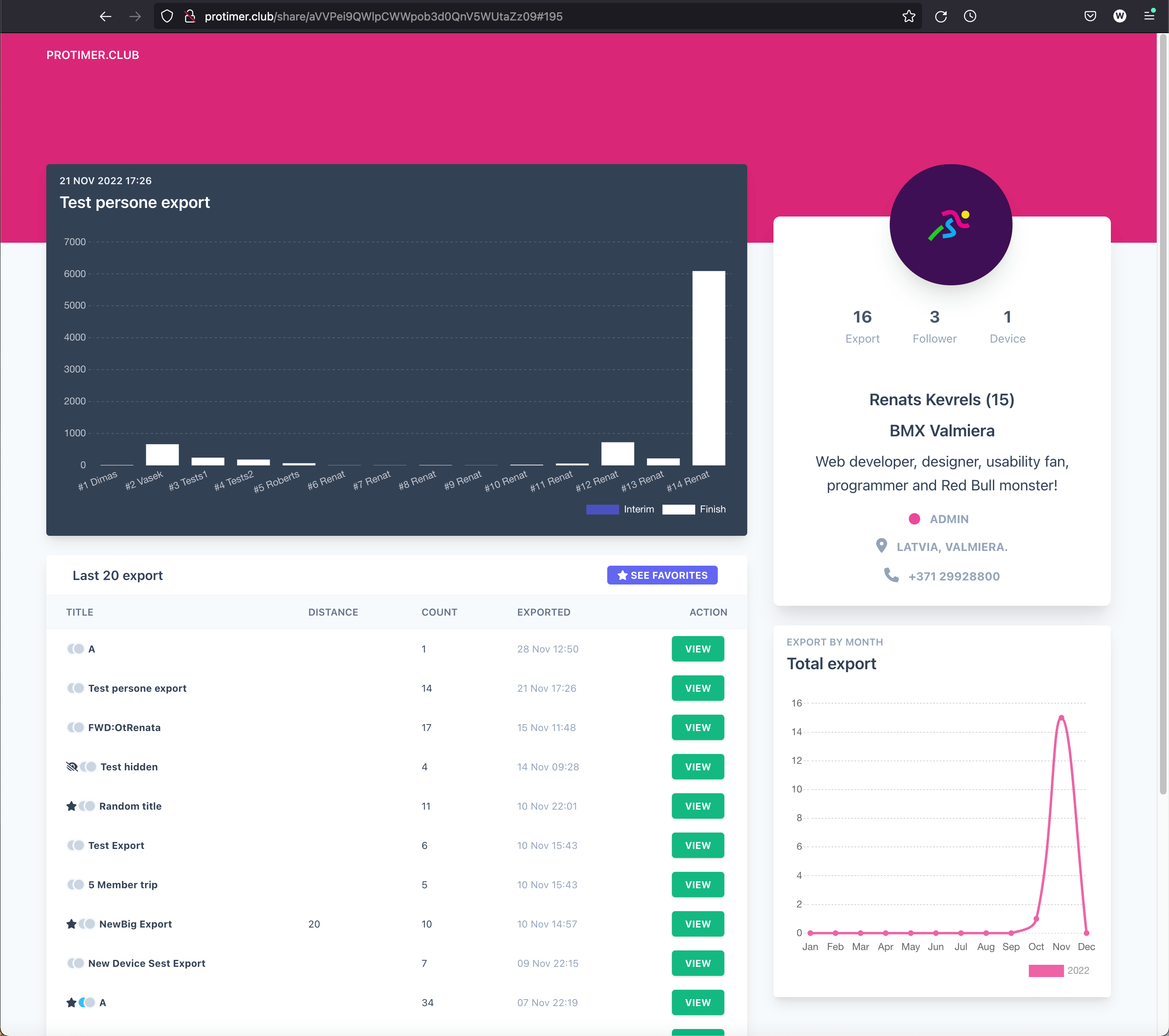
You can share your achievements using the following links: https://protimer.club/share/MzlLRDlaT1hnMTNaeEVZbnFSTTNHUT09
WiFi Control
1
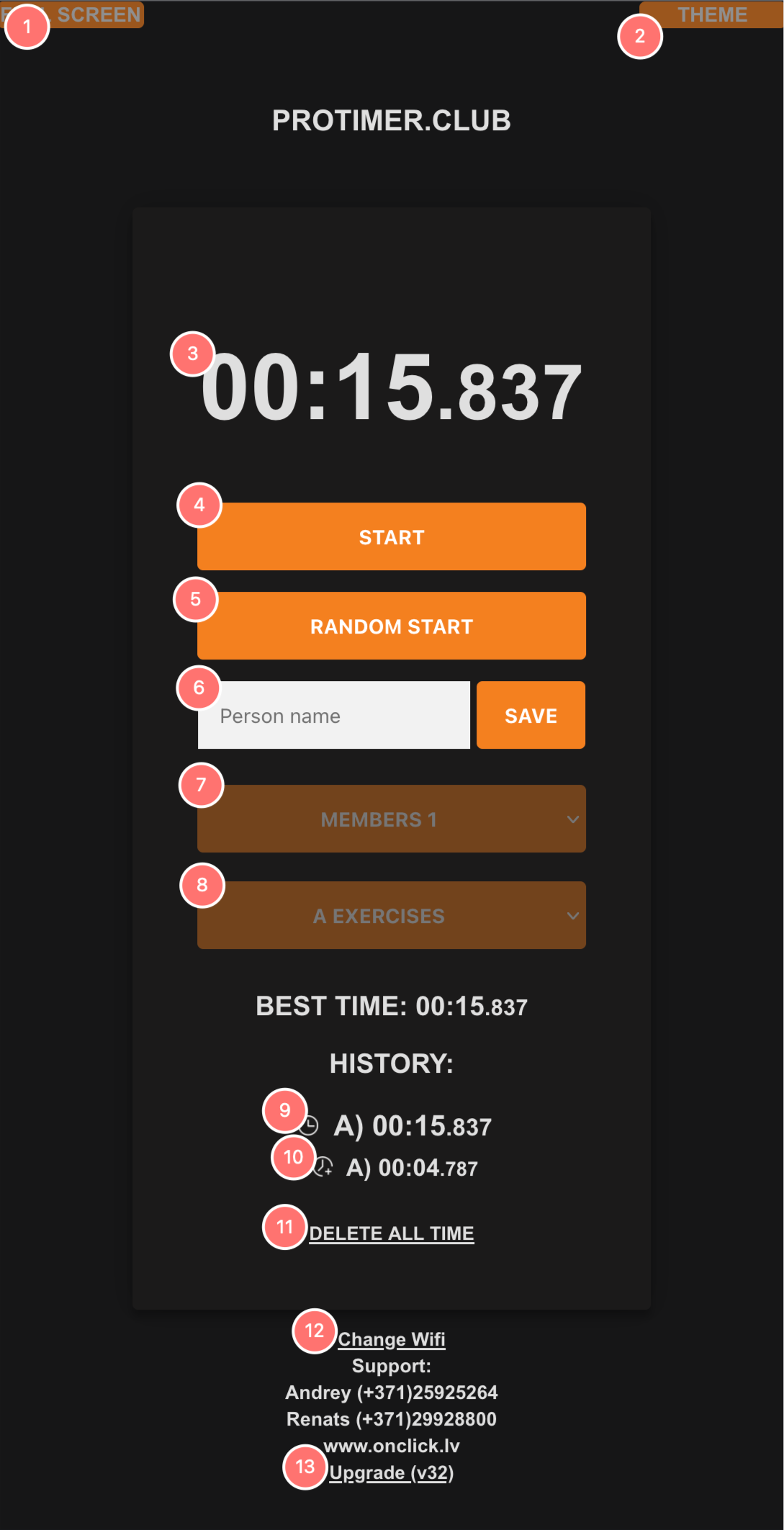
Switch to full screen mode.
2
Switch between visualization themes.
3
Stopwatch in real time, you can follow the duration of the distance both in the WEB-application and on the Master Point display.
4
"Start" button, manual start of the timer, if the timer is running, it can be stopped, instead of "Start" there will be a "Stop" button.
5
Button for UCI standard Random Gate Start. The AUX output can be used to connect a DIY electromagnetic barrier.
6
Athlete ID (name, number...) must be saved before the finish point works, relevant in group sessions, the time with the ID will be available in the ProTimer.club cloud after export.
7
Also relevant for group classes. The finish point will work for the selected number of participants.
8
The ability to divide the lesson by exercises, by export, in the ProTimer.club cloud, each exercise schedule can be given its own name.
9
Time, at the end of the distance "Finish", exercise A.
10
Time, in the exercise for the intermediate point A.
11
Delete all records, clear history.
12
Change the settings of the access point through which the Master Point will download (export).
13
Master Point software update and current version.
Master Point - Home Screen

1
Operating modes:
Master mode - the module works as a starting point, can be placed at the beginning of the distance, the stopwatch is started by crossing the beam between the photocells.
Display mode - the module works as a display, with the built-in sensor disabled, so you can carry it with you. A Start Point is required to start the timer.
Gate mode - is a solution for starting timed races with any barrier. The Master device is placed in front of the barrier, with no mirror required. When the barrier drops, the device detects it and automatically starts the timer.
Gate AUX mode - the module is equipped with an AUX output for connecting a DIY electromagnetic gate. Using the ProTimer.club web interface, you will be able to use the "Random start". In this mode, the starting point acts as an intermediate point.
Laps Mode - is a mode where no additional points are needed: the built-in sensor in the master point acts as the finish point. You select the number of laps in the app and start the timer manually. Each time you pass the master point, the system counts a lap. At the end, the total run time is displayed.
2
The Master Point is waiting for the connection of the configuration and other modules.
3
The name of the Wi-Fi Master Point access point.
4
WiFi password, this password is also required to register in ProTimer.club cloud.
5
After the connection is established, the ProTimer.club WEB application will be available at the following address: http://192.168.4.1
Master Point - Stopwatch screen

1
Timer started/stopped.
2
Number of records saved / Letter with exercise.
3
The Athlete Identification Number (name, number...) must be retained before starting work at the finish point.
4
Chronometer.
Master Point - History Screen

You can view the last 20 entries by pressing the button on the device.
Master Point - Export Screen

After connecting Master Point to Power Bank, it will automatically try to upload your time to the cloud.
1
Export (upload) of the process to the ProTimer.club cloud.
2
The device tries to connect to the router using the password specified here.
Master Point - Software Update
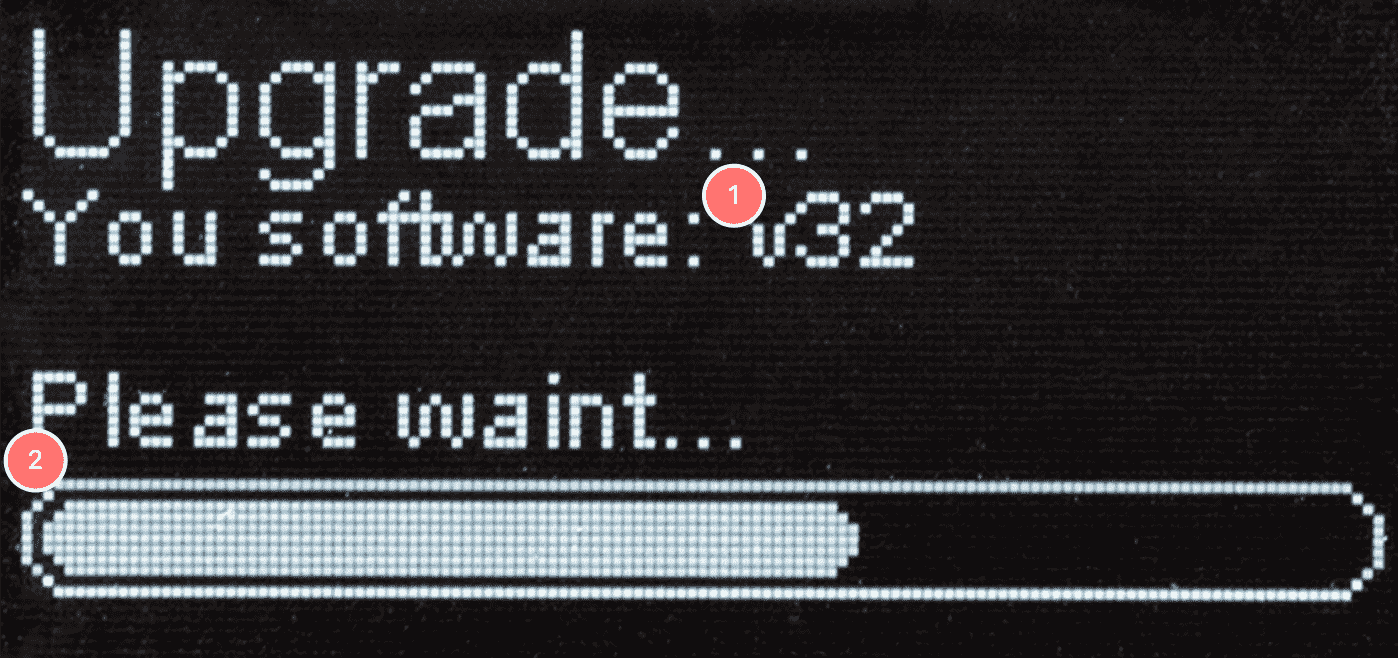
The software update can be activated by pressing the button on the device and connecting it to power without releasing it. This can also be done in the Master Point WEB application.
1
The current installed version number.
2
The update installation process.
Pro Point - Home Screen

1
Operating modes: Finish, Start, Interim, Gate. They can be switched by pressing a button.
2
Ready to install the reflector, you need to point it at the sensor.
Pro Point - Setting

1
Preset mode.
2
Tuning process with a beep when the reflector is correctly positioned and the sensor receives a response.
3
Successfully delivered packets and losses, if a large number of lost packets, then the Pro Point is at a critical distance from the Master Point.
4
Pro Point did not find the Master Point, if the Master Point is found, then the packet speed is displayed in milliseconds.
Pro Point - Setup Complete

1
Preset mode.
2
The time during which the sensor will not react again to the interruption of the beam, this time can be changed by pressing the button, min: 0.10 s, max: 2.50 s. Default: 1s.
3
The device is ready to work.